Quick answer
- Go to Design › Format Background.
- Choose Gradient fill.
- Pick a Type (Linear, Radial, Rectangular, Path) and a direction or angle.
- Select each gradient stop and set its color, position and transparency; add or remove stops with the buttons.
- Click Apply to All to use it on every slide.
Make a gradient slide background
Open Format Background
On the Design tab, click Format Background, or right-click an empty part of the slide and choose Format Background. A pane opens on the right.
Choose Gradient fill
Under Fill, select Gradient fill. PowerPoint applies a preset based on your theme colors; open Preset gradients to try others.
Set type and direction
Choose a Type: Linear, Radial, Rectangular or Path. For Linear, pick a Direction or type an exact Angle.
Edit the gradient stops
The stop bar shows the colors. Click a stop, then set its Color, Position, Transparency and Brightness. Use the add and remove buttons next to the bar to change the number of stops.
Apply to all slides
Click Apply to All at the bottom of the pane to use the gradient on every slide, or leave it to keep it on the current slide only.
Apply a gradient to a shape
Insert a shape from Insert › Shapes, right-click it and choose Format Shape. Under Fill, select Gradient fill and set the stops just like for the background. To remove the outline, set Line to No line.
A rectangle with a gradient fill makes a great color band or card behind text.
Fade a gradient over a photo
A transparent gradient over a photo darkens one side so text stays readable:
Draw a rectangle over the photo
Make it the same size as the photo or the slide.
Use two stops of the same color
In Format Shape, set Gradient fill with two stops, both black (or a dark brand color).
Change the transparency
Set the first stop to 100% transparency and the last to around 30 to 50%. The photo now fades into a dark area for your title.
Make gradient text
Select the text, open Format Shape › Text Options › Text Fill and choose Gradient fill. Set the stops as before. Gradient text works best on large titles with bold fonts; keep body text a solid color for readability.
Use a gradient image for a premium look
PowerPoint's gradient fill is smooth and simple: no grain, no organic shapes and visible banding on some projectors. For hero slides, title slides and section dividers, a gradient image looks far more polished.
Download a gradient image
Grab a free 1920 x 1080 gradient from our gradient backgrounds, or make your own in World of Gradients.
Insert it as the background
Open Format Background, choose Picture or texture fill, click Insert and select the image.
Apply to All (optional)
Click Apply to All to use it across the presentation.

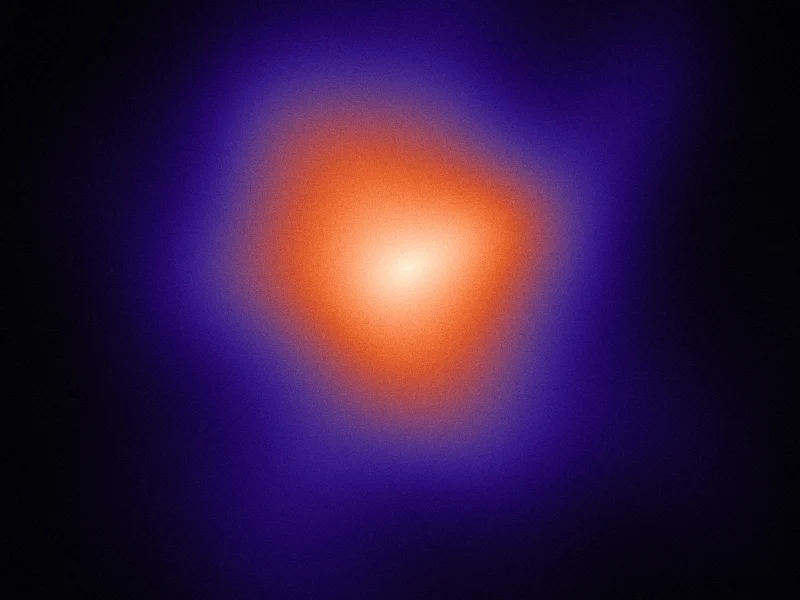

Gradient images with grain make slide backgrounds feel designed instead of default.
| Slide size | Image size |
|---|---|
| Widescreen 16:9 (default) | 1920 x 1080 or 3840 x 2160 |
| Standard 4:3 | 1600 x 1200 |
Exporting without banding
Smooth gradient fills can show steps when exported to video or PDF and when projected. A gradient image with grain avoids that, because the noise breaks up the steps. If you keep the built-in fill, add more stops between similar colors and avoid very long, subtle blends. Learn more in our guide to fixing banding.
Frequently asked questions
How do I apply a gradient background to all slides in PowerPoint?
Set up the gradient in Design, Format Background, then click Apply to All at the bottom of the pane.
How do I make a gradient transparent in PowerPoint?
Select a gradient stop and raise its Transparency slider. Use the same color for all stops and only change the transparency for a clean fade.
What size should a PowerPoint background image be?
For the default 16:9 slide size, use 1920 x 1080 pixels, or 3840 x 2160 for 4K screens.
Can I add grain to a PowerPoint gradient?
Not with the built-in gradient fill. Use a gradient image that already contains grain as a picture background instead.