Quick answer
- Airbrush: paint soft color areas with a large, soft airbrush and blend them.
- Gaussian Blur: fill blocks of color, then use Adjustments › Gaussian Blur and drag across the screen.
- Gradient Map: paint in grayscale, then use Adjustments › Gradient Map to map the tones to colors.
Method 1: Blend with the airbrush
This is the most natural, painterly method and gives you full control.
Fill the background
Pick your darkest color and drag the color disc from the top right onto the canvas to fill the layer.
Choose a soft airbrush
Open the Brush Library and pick Airbrushing › Soft Airbrush. Set the size large, around 50 to 100 percent.
Paint the colors
Add a new layer and paint soft areas of your second and third colors with light pressure. Build up color gradually instead of pressing hard.
Blend
Switch to the Smudge tool with the same soft airbrush and smudge the edges where colors meet for a seamless transition.
Method 2: Color blocks plus Gaussian Blur
The fastest way to a perfectly smooth gradient.
Block in the colors
Use the Selection tool (rectangle or freehand) to select a band of the canvas and fill it with a color. Repeat for each color so the canvas is covered in bands or shapes.
Merge or keep on one layer
Make sure all the color blocks are on the same layer, since adjustments only affect one layer at a time.
Apply Gaussian Blur
Tap Adjustments › Gaussian Blur and choose Layer. Slide your finger to the right across the screen to increase the blur until the blocks melt into a smooth gradient.
Fine-tune
Blur again or smudge any areas that are too hard. Add a soft airbrush highlight on a new layer for extra glow.
Method 3: Gradient Map
A Gradient Map replaces the tones of a layer with colors from a gradient: shadows get the colors on the left of the map, highlights the colors on the right.
Paint in grayscale
Paint a simple light-to-dark shape or a blurred grayscale composition on a layer.
Duplicate the layer
The Gradient Map is permanent once applied, so duplicate the layer first to keep an editable copy.
Open Gradient Map
Tap Adjustments › Gradient Map. Pick one of the presets in the Gradient Library to apply it.
Make your own map
Tap the + in the Gradient Library, or tap the selected preset to edit it. Tap a color point to change its color, tap an empty spot on the bar to add one (up to 12), and touch and hold a point to delete it.
Apply
Tap the Adjustments icon to finish, or tap the canvas and choose Apply.
Add grain
A touch of grain makes digital gradients look like film or risograph prints. Add a new layer on top, fill it with medium gray, then use Adjustments › Noise and slide to set the amount. Set the layer's blend mode to Overlay or Soft Light and lower its opacity until the texture feels right.
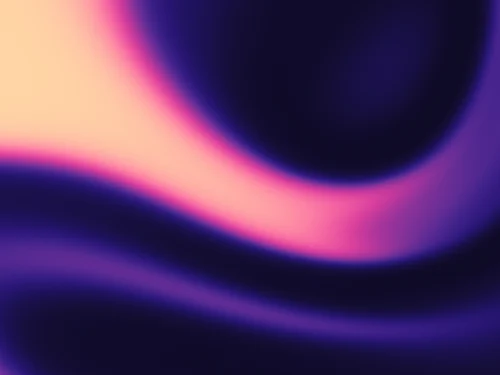
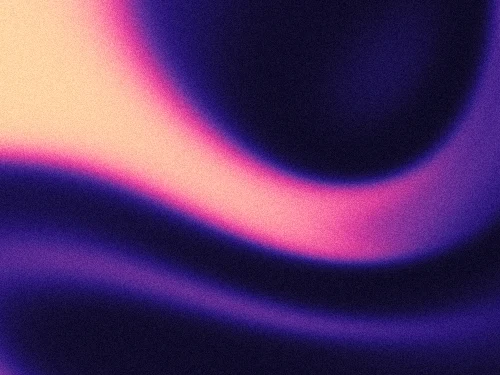
See our grainy gradient guide for how much grain to use for different purposes.
Make gradient text or shapes
Add your text with Actions › Add › Add Text, then rasterize it by tapping the text layer and choosing Rasterize. Turn on Alpha Lock for the layer (tap the layer and choose Alpha Lock, or swipe right with two fingers) and paint over it with a soft airbrush: the color only lands inside the letters. Alternatively, put your gradient on a layer above the text and set it as a Clipping Mask.
Canvas size and export
For a phone wallpaper, create a custom canvas of 1290 x 2796 pixels; for a desktop wallpaper, 3840 x 2160. Export with Actions › Share › PNG to keep the grain crisp. Our gradient wallpaper guide lists the sizes for every common device.
Frequently asked questions
Is there a gradient tool in Procreate?
Procreate has no dedicated gradient fill tool. Use the airbrush and smudge tool, Gaussian Blur on blocks of color, or the Gradient Map adjustment.
Can I undo a Gradient Map in Procreate?
You can undo right after applying it, but the adjustment is permanent once you continue working. Duplicate the layer first to keep an editable copy.
How do I make a smooth gradient background in Procreate?
Fill blocks of color on one layer and apply Gaussian Blur to the layer, sliding across the screen until the colors melt together.
How many colors can a Procreate Gradient Map have?
A Gradient Map needs at least two color points and can have up to 12.